Quick Answer
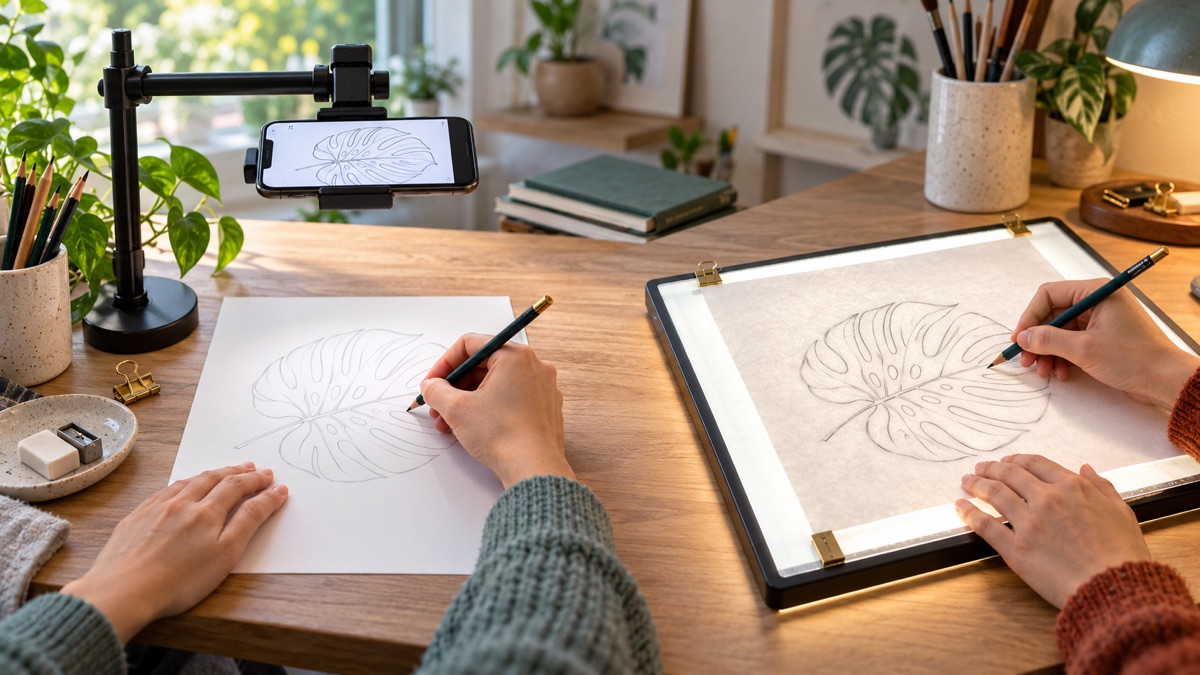
A drawing projector app is the better first choice when you want a portable setup, flexible image scaling, camera-assisted alignment, and references stored on your phone. A lightbox is better when you repeatedly transfer clean line art at a desk and want a stable, distraction-free surface. Neither is universally better: choose the app for changing sizes and working anywhere; choose the lightbox for predictable tracing on thin or medium-weight paper. If your budget allows, the strongest workflow is often hybrid—use the app to frame and scale the subject, then use a lightbox to transfer a cleaned-up drawing.
Open How to Draw for AR projector tools, photo-to-sketch references, and guided drawing practice on iPhone or iPad.
How Each Drawing Setup Works
A phone drawing projector app does not usually cast a bright physical image onto paper like a classroom projector. Instead, it combines a live camera view with a transparent digital reference on the screen. You look through the phone, align the reference with the paper, and follow the visible guide while drawing below. Apple describes augmented reality as combining device motion tracking, camera imagery, and virtual content so digital elements appear connected to the real environment. In practice, a steady mount, even lighting, and a paper position that does not move matter more than fancy accessories.
An LED lightbox is a flat illuminated panel. Put the source drawing on the panel, place a second sheet over it, and trace the lines that shine through. The paper stays in direct contact with the reference, so there is no camera view to interpret and no screen alignment to maintain. Lightboxes are especially useful for cleaning rough sketches, repeating a design, inking animation frames, or transferring a drawing to another sheet.
Both methods belong to a long history of drawing aids. The Metropolitan Museum of Art describes the camera lucida as a prism-based tool that visually superimposed a scene on a sketchbook, while the camera obscura projected a view onto a surface for tracing. The technology has changed, but the practical question is familiar: which aid helps you place useful guides without taking over the drawing?
Drawing Projector App vs Lightbox at a Glance
| Decision factor | Projector app | LED lightbox |
|---|---|---|
| Best for | Scaling photos, flexible layouts, travel, quick practice | Clean line transfer, repeated studio work, inking |
| Starting cost | Low if you already own a compatible phone; a stable mount helps | Requires a separate panel, power source, and storage space |
| Image resizing | Fast digital zoom, crop, rotate, and reposition | Usually requires a resized print or screen beneath the paper |
| Paper freedom | Works on many surfaces because the paper is viewed by camera | Thick or dark paper can block the light |
| Stability | Depends on a secure phone mount and calibration | Very stable once the papers are clipped or taped down |
| Distractions | Notifications and screen controls can interrupt the session | Single-purpose, quiet working surface |
| Portability | Excellent; phone and compact stand can travel easily | Good for slim A4 panels, less convenient in larger sizes |
| Learning value | Strong when followed by a freehand redraw | Strong for line cleanup, repetition, and controlled transfer |
Choose a Drawing Projector App When…
You want to change scale without printing
A projector app lets you crop a reference and test several placements before making a mark. That is helpful when you want to fit a portrait onto a small sketchbook page, enlarge a flower across a poster, or place a motif on an object that cannot sit on a lightbox. The screen becomes a movable viewfinder: adjust the reference until the proportions and negative space feel right, then mark only a few anchor points.
You draw in different places
If you practice at a kitchen table, in a classroom, or while traveling, a phone and foldable clamp take less room than a large panel. The setup is also a sensible trial before purchasing dedicated equipment. Start with the device you already have and decide whether assisted transfer is something you use often enough to justify more hardware.
You use photos as references
A phone workflow pairs naturally with cropping and photo-to-sketch tools. You can simplify busy color information into a line reference, align the large shapes, and then return to the original photo for values and texture. The dedicated photo-to-sketch drawing guide explains how to keep the original image involved so the conversion does not become a noisy set of automatic edges.
Choose a Lightbox When…
You transfer finished line work
A lightbox excels after the exploratory sketch is already solved. Place the rough drawing underneath, clip the clean sheet on top, and transfer only the lines worth keeping. This is useful for final ink drawings, lettering layouts, animation frames, sewing motifs, or a second version of a composition. Because the drawing and paper touch the same flat surface, small details stay registered.
You want fewer screen decisions
A lightbox has no camera permission, alignment overlay, incoming notification, or changing zoom level. Turn it on, choose a comfortable brightness, and draw. That simplicity can make longer cleanup sessions feel calmer. It also makes the process easy to demonstrate to a child or classroom group because the relationship between source and tracing paper is visible immediately.
Your studio work repeats the same size
If most of your drawings fit A4 or letter-size paper and stay at a desk, a panel can be faster than resetting a phone mount each time. Check the illuminated area, brightness control, power connection, and surface flatness before buying. A larger panel only helps when your usual paper actually needs it; oversized hardware can become awkward to store.
Which Setup Is More Accurate?
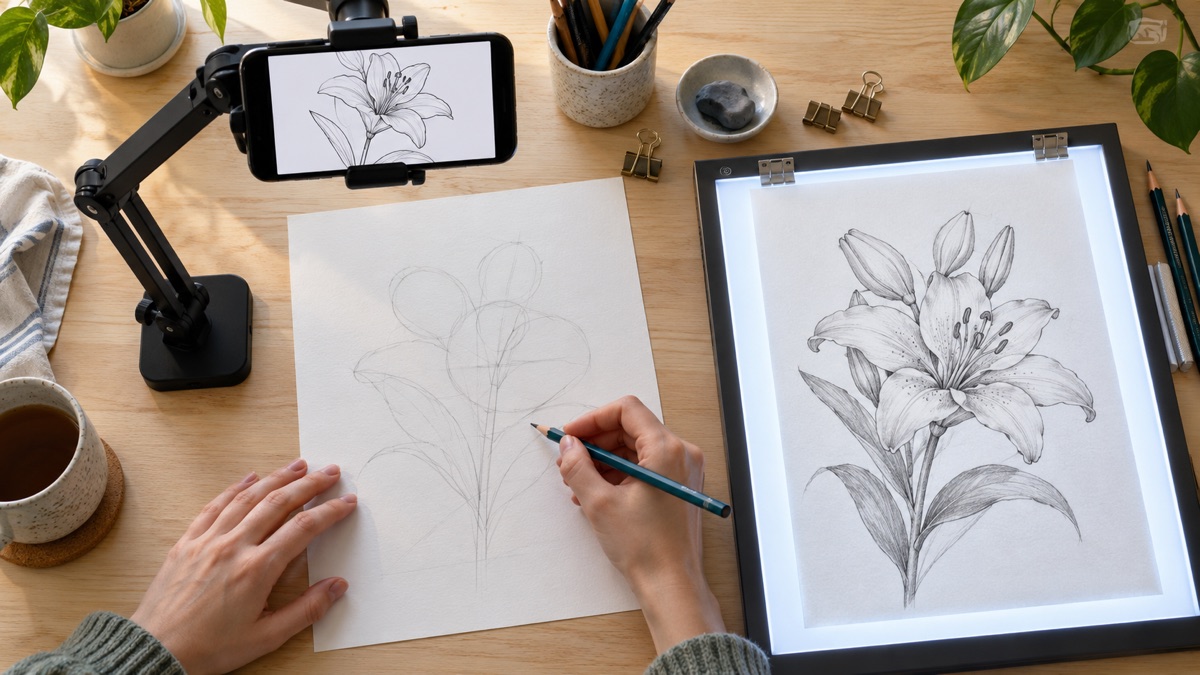
For a simple one-to-one transfer, the lightbox is usually more predictable because the source and destination sheets lie together. The main errors come from paper shifting or from tracing imprecisely. Tape or low-tack clips solve most registration problems.
A projector app can be equally useful for large proportions, but accuracy depends on the relationship among camera, screen, paper, and mount. If the phone moves after alignment, the guide moves. If the camera views the paper at an angle, the screen view can make one side appear larger. Use the AR drawing phone setup guide to position the device securely, keep the paper centered, and test alignment with four corner marks before tracing details.
Accuracy is not the same as drawing quality. A perfectly transferred contour can still feel stiff, and a slightly imperfect freehand line may describe form better. The Getty’s contour-drawing lesson emphasizes repeatedly looking between subject and paper. Keep that habit even when using a guide: pause, compare angles, and decide which edges are actually important.
Paper, Lighting, and Comfort
Lightboxes work best with paper thin enough for the source lines to show through. Standard sketch, copier, layout, and many marker papers are straightforward. Heavy watercolor paper, toned paper, cardboard, and textured surfaces reduce visibility. You may still see bold shapes at maximum brightness, but faint detail disappears quickly. A projector app is less dependent on paper translucency, so it is often the more flexible choice for thick or colored surfaces.
For a phone setup, avoid a bright window or lamp reflecting in the screen. OSHA recommends arranging screens and task lighting to reduce glare and avoiding intense, uneven light in the field of view. The same principle applies to a lightbox: set it only as bright as needed, add diffuse room light so the panel is not a glowing rectangle in a dark room, and keep your shoulders relaxed rather than leaning close to find faint lines.
Take regular breaks during longer sessions. The National Eye Institute suggests the 20-20-20 habit: every 20 minutes, look roughly 20 feet away for 20 seconds. Change position, stretch your drawing hand, and reset the paper when your neck begins to bend forward. These small pauses help both phone and lightbox sessions.
How to Use Either Tool Without Becoming Dependent
- Observe first. Name the subject’s biggest shape, tilt, and proportion before turning on the guide.
- Transfer fewer lines. Mark the outer boundary, centerline, and three to six anchor points instead of tracing every texture.
- Turn the aid off. Complete at least part of the contour or shading while looking at the original reference.
- Change one decision. Adjust the crop, expression, line weight, background, or value pattern so the drawing is not a mechanical copy.
- Redraw small and freehand. Make a five-minute version beside the traced drawing. Compare proportion and energy, not polish.
This approach turns tracing into a short calibration exercise. For a full practice sequence, follow the AR drawing app tracing guide, then use the step-by-step beginner practice plan for the freehand pass.
The Best Hybrid Workflow
- Open the reference on your phone and crop it to the final composition.
- Use the projector view to test scale and place the top, bottom, left, and right boundaries on rough paper.
- Draw the largest construction shapes freehand and correct their angles against the original.
- Place that rough drawing on a lightbox with a clean sheet above it.
- Transfer only the strongest contour and structural lines.
- Remove the clean sheet from the lightbox and finish values, texture, and edges through observation.
This gives each tool one clear job: the app handles flexible composition and scale, while the lightbox handles the clean physical transfer. It also preserves a decision-making stage between the reference and the final drawing.
Final Verdict
Start with a drawing projector app if you already own a compatible phone, frequently resize references, work on different surfaces, or need a portable setup. Choose a lightbox if you regularly clean up line art, repeat designs, work at one desk, and value a stable single-purpose surface. For most beginners, the app is the lower-commitment first experiment. For illustrators who already produce many rough sketches, a lightbox earns its desk space more quickly.
Whichever setup you choose, judge it by the drawing habits it supports. A useful aid saves time on placement, keeps your posture comfortable, and leaves room for observation and interpretation. If the tool makes you trace more lines but notice less, simplify the setup and finish with a freehand redraw.
Use How to Draw for AR projector practice, photo-to-sketch references, and step-by-step lessons—then finish the drawing in your own hand.
Related Drawing Guides
- Explore How to Draw features and drawing lessons
- Set up an AR drawing projector on your phone
- Learn a trace-to-freehand paper workflow
- AR Drawing App: How to Trace Pictures on Paper With Your Phone
- Photo to Sketch App Guide: Turn a Photo Into a Drawing Reference
- How to Draw for Kids: Easy, Fun Drawing Ideas That Build Confidence
References
- Apple Developer Documentation: ARKit
- The Metropolitan Museum of Art: William Henry Fox Talbot and early optical drawing aids
- J. Paul Getty Museum Education: Framing the Landscape contour exercise
- U.S. Occupational Safety and Health Administration: Workstation environment and glare
- National Eye Institute: Healthy vision tips