Quick Answer: What Makes a Good Drawing App for Kids?
The best drawing app for a child fits that child's age, attention span, and current skills. It gives one clear next step instead of opening on a confusing blank canvas. It also lets a parent understand what data the app uses, whether it contains ads or external links, what purchases are offered, and whether photos or recordings ever leave the device.
An App Store age rating is a useful first filter, but it is not a complete family review. Before handing over any app, look at the product page, privacy information, in-app purchases, sharing tools, camera or photo access, and parental controls. Then try one lesson together. A strong result is not simply more time on the screen—it is a child who can put the device down and continue creating.
Review the current App Store listing, age rating, privacy details, and in-app purchases before deciding whether How to Draw fits your family.
1. Start With the Learning Design
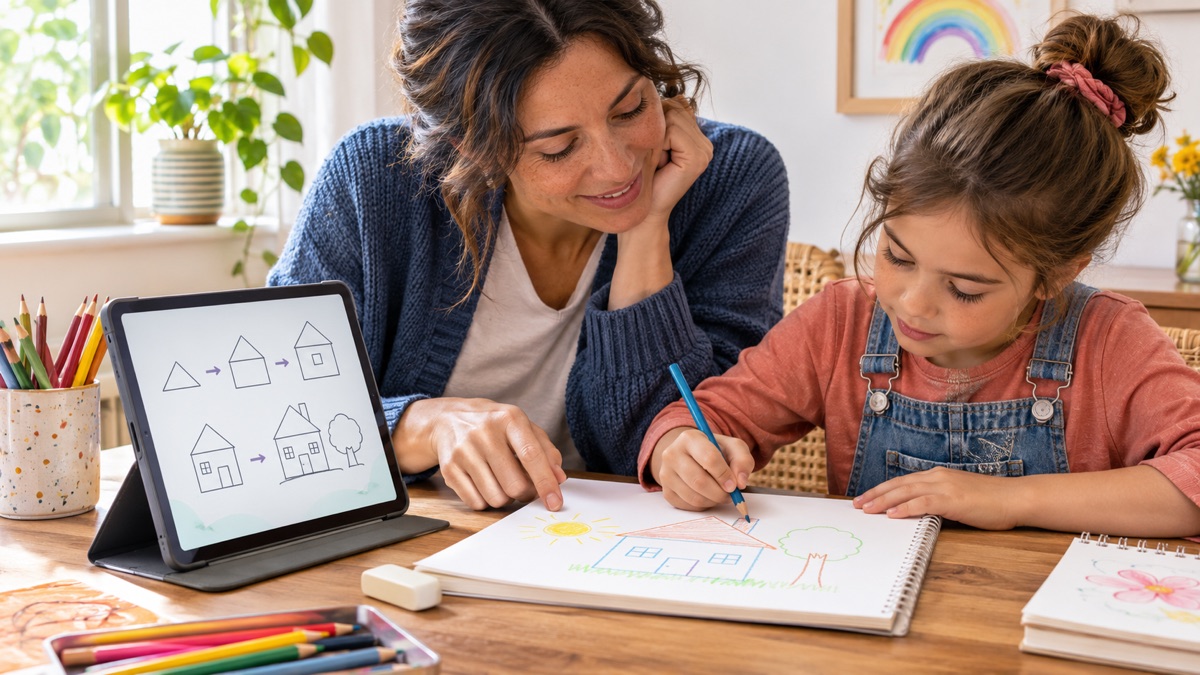
Good instruction reduces frustration without taking over the creative choices. For young beginners, look for large reference images, short step-by-step sequences, visible progress, and controls that do not compete with the drawing. The child should be able to answer three questions: What am I drawing? What do I do next? How can I try it again?
A useful lesson starts with large shapes and adds detail gradually. It may demonstrate how a circle becomes a head or how two triangles become ears. It should also leave room to change color, expression, pattern, or background. Apps that only reward exact copying can make every difference look like a mistake. Apps that teach a repeatable shape strategy give children something they can reuse in a new picture.
Test the first five minutes yourself. Count the taps required to begin. Check whether a child can replay a step without losing work. Make sure the essential buttons are easy to distinguish. The drawing app for beginners guide offers a broader comparison of lessons, references, tracing, and paper practice.
2. Check Age Fit, Content, and Difficulty
Age ratings describe content and app features under the store's system; they do not tell you whether the lesson pace suits your child. A 4+ app can still contain tools, subscriptions, prompts, or sharing features that call for adult setup. Conversely, a simple animal lesson may work for a wide age range when a parent helps with the first attempt.
For ages five to seven, prioritize single-subject lessons, big targets, few menus, and ten-minute activities. For ages eight to ten, look for choice, simple technique explanations, and projects that can continue on paper. Older children may want layers, photo references, stylus support, or more independent challenges. In every age group, preview the subject library and any user-generated or AI-generated content before the child explores alone.
3. Read the Privacy Information Before Granting Access
Drawing apps sometimes ask for the camera, photo library, microphone, account information, or device identifiers. Some permissions support understandable features—a camera may help project a reference onto paper, for example—but parents should still know what is collected, why it is needed, where it is processed, and how it can be deleted.
The Federal Trade Commission explains that COPPA gives US parents control over personal information collected online from children under 13. Personal information can include names, contact details, precise location, photos, video, audio, and persistent identifiers. That makes photo-to-sketch, recording, account, cloud, and sharing features worth a careful look.
4. Review Ads, Links, AI, and Sharing
Look beyond the drawing canvas. Does the app open a web browser? Can it share an image to social media, email, or messaging? Does it contain advertising, chat, public profiles, or links that lead outside the app? Can a child type a free-form prompt into an AI tool? Each answer changes how closely the experience should be supervised.
For younger children, an offline lesson library without public posting is easier to manage than an open feed. If sharing is offered, have the child save work locally and let an adult choose if, where, and with whom it is sent. The FTC specifically notes that enabling a child to make personal information publicly available can fall within COPPA's protections. A drawing itself may reveal a name, school, face, home, or location even when the app does not ask for those facts in a form.
Generative AI adds another review point. Try the prompt feature with an adult account, see how it handles unusual requests, and explain that a generated image is a suggestion rather than a fact or a finished piece to copy exactly. A curated library is usually the simpler starting place for a young child.
5. Make the Price and Purchases Understandable
“Free” may mean free to download, not free to use without limits. Check the App Store's In-App Purchases section and the subscription terms before starting a trial. Note the price, billing period, renewal behavior, features behind the paywall, and cancellation path. If several children share a device, confirm whether the purchase works through the family's account setup.
Apple's Ask to Buy can require approval before a child downloads an app or makes an eligible purchase. Content & Privacy Restrictions can also manage installing apps and in-app purchases. These tools reduce surprises, but they do not replace a conversation: tell the child which buttons mean “ask first,” why trials can renew, and which parts of the app are available today.
The current US App Store listing for How to Draw identifies it as free with in-app purchases, designed for iPad, available for iPhone and iPad, and rated 4+. Parents should review that live listing because features, prices, ratings, and privacy disclosures can change after an article is published.
6. Look for Useful Family Controls
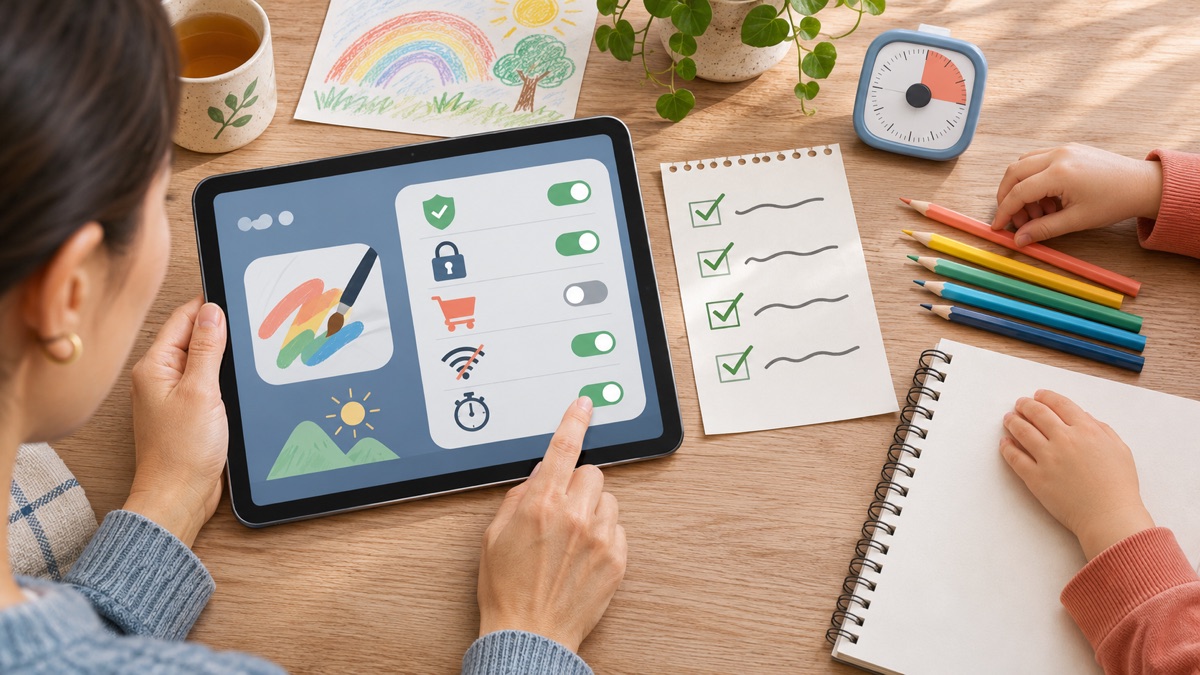
The most helpful controls support a family routine rather than policing every tap. Device-level tools can approve downloads, limit app categories, set schedules, and manage privacy. Within the drawing app, useful options include turning off notifications, preventing automatic sharing, limiting network features, hiding mature or advanced content, and keeping projects on the device.
Use a passcode the child does not know for purchase and privacy changes. Put the device in a stable stand if the camera is used over paper. Disable notifications during the lesson so a drawing session does not become a path into messages, video, or games. When possible, download a reference first and switch to a focused or offline mode.
7. Prefer Creation Over Passive Rewards
A child-centered drawing app should spend more time helping a child make something than showing streaks, coins, pop-ups, or autoplay. Rewards are not automatically harmful, but they should not become the main reason to continue. Watch what happens when a child finishes: does the app offer another drawing choice, invite reflection, or push an unrelated purchase?
The American Academy of Pediatrics recommends looking at the quality and context of media use, not only the number of minutes. For a drawing app, quality can mean co-using the lesson, talking about artistic choices, learning a reusable technique, and making a physical picture that exists after the screen is off.
8. Choose a Screen-to-Paper Practice Loop
Drawing develops through repeated looking, planning, and hand movement. A practical app should support that process. Try a simple three-part loop:
- Watch or trace once. Use the lesson to understand the largest shapes and proportions.
- Copy beside the guide. Keep the reference visible, but draw on a fresh area of paper without tracing.
- Change and redraw. Hide the guide, change one feature, and draw the subject again from memory.
This progression turns assistance into learning. A camera projector or tracing overlay can help a child get past one difficult proportion, but the second and third drawings show what the child understood. See the trace–copy–recall guide for a fuller explanation, or use the working AR drawing practice page to understand the phone-and-paper setup.
9. Test the App Together for Ten Minutes
Store descriptions cannot show how an app feels in your home. Sit beside your child for the first session and observe rather than taking over. Choose one easy subject and ask the child to explain the next step. Note where they hesitate, what permission requests appear, whether a paywall interrupts the task, and whether the lesson leaves time for independent choices.
After ten minutes, put the device face down and ask: “What shape did you start with?” “What would you change?” and “Can you draw a smaller version from memory?” Those questions reveal more than whether the finished picture looks like the example. They test whether the app supported understanding, confidence, and transfer.
The 10-Minute Parent Review Checklist
- Purpose: Can you describe what the child will learn or create?
- Age fit: Are subjects, instructions, and difficulty suitable for this child?
- Privacy: Did you read the privacy label and linked policy?
- Permissions: Are camera, photos, microphone, and location requests necessary?
- Open features: Did you test links, sharing, AI prompts, ads, and any public areas?
- Cost: Are the trial, subscription, and in-app purchases clear?
- Controls: Are purchase approval and content/privacy restrictions configured?
- Usability: Can the child start, pause, replay, and exit without confusion?
- Creative value: Can the child make choices rather than only copy?
- Offline result: Does the session lead to a paper drawing or another creation?
Choose the App, Then Build the Routine
A good drawing app for kids is not defined by one feature or age badge. It earns a place in the family routine through clear instruction, understandable costs, respectful data practices, manageable permissions, and creative work that continues beyond the screen.
Review the current listing and privacy details, configure the device, and complete the first lesson together. Keep paper and pencils ready from the beginning. When the child finishes, save the guided drawing and invite one small freehand variation. That final step helps the app act as a teacher and reference—not the owner of the creative process.
Open the live listing, check the current details, then use one reference for a short screen-to-paper drawing session.
Related Drawing Guides
- How to Draw: Guided Lessons and Paper Practice
- What Beginners Should Look for in a Drawing App
- AR Drawing Practice With Phone-Guided References
- How to Draw for Kids: Easy Ideas That Build Confidence
- Fun Drawing Games for Kids at Home
- Cute Drawing Ideas for Kids: 24 Easy Doodles
- Best Drawing App for iPad: Lessons and Paper Practice
- Trace Drawing App: When Tracing Helps You Learn
References
- Federal Trade Commission: Protecting Your Child's Privacy Online
- Federal Trade Commission: Complying With COPPA—Frequently Asked Questions
- Apple Support: Set Up Parental Controls on a Child's iPhone or iPad
- American Academy of Pediatrics: Screen Time Guidelines
- Apple App Store: How to Draw, Step by Step